Some Nice Git GUI Tools
Git is an incredibly ubiquitous and important developer tool these days; I’m sure pretty much anyone reading this post uses it on a daily basis. There are two main ways to do that: the command line interface, or CLI, and 3rd party graphical user interfaces, or GUIs. In this blog post I will discuss a couple of the GUI tools that I’ve been using lately, and why I switched from the CLI for the bulk of my workflow.
The Command Line Interface
If you’re like me, this is the first way you learned to use git. It’s available anywhere with git, and it’s capable of anything you can do in git. The CLI was my main way of interacting with git for years, but eventually I switched to a GUI for a few reasons. 1: They tend to offer a much better file diffing experience out of the box, 2: In a tool with good keyboard shortcuts, you can save a lot of time compared to typing out every command, even with aliases. And 3: committing and discarding individual chunks from directly within a visual diff is super powerful.
Graphical User Interfaces
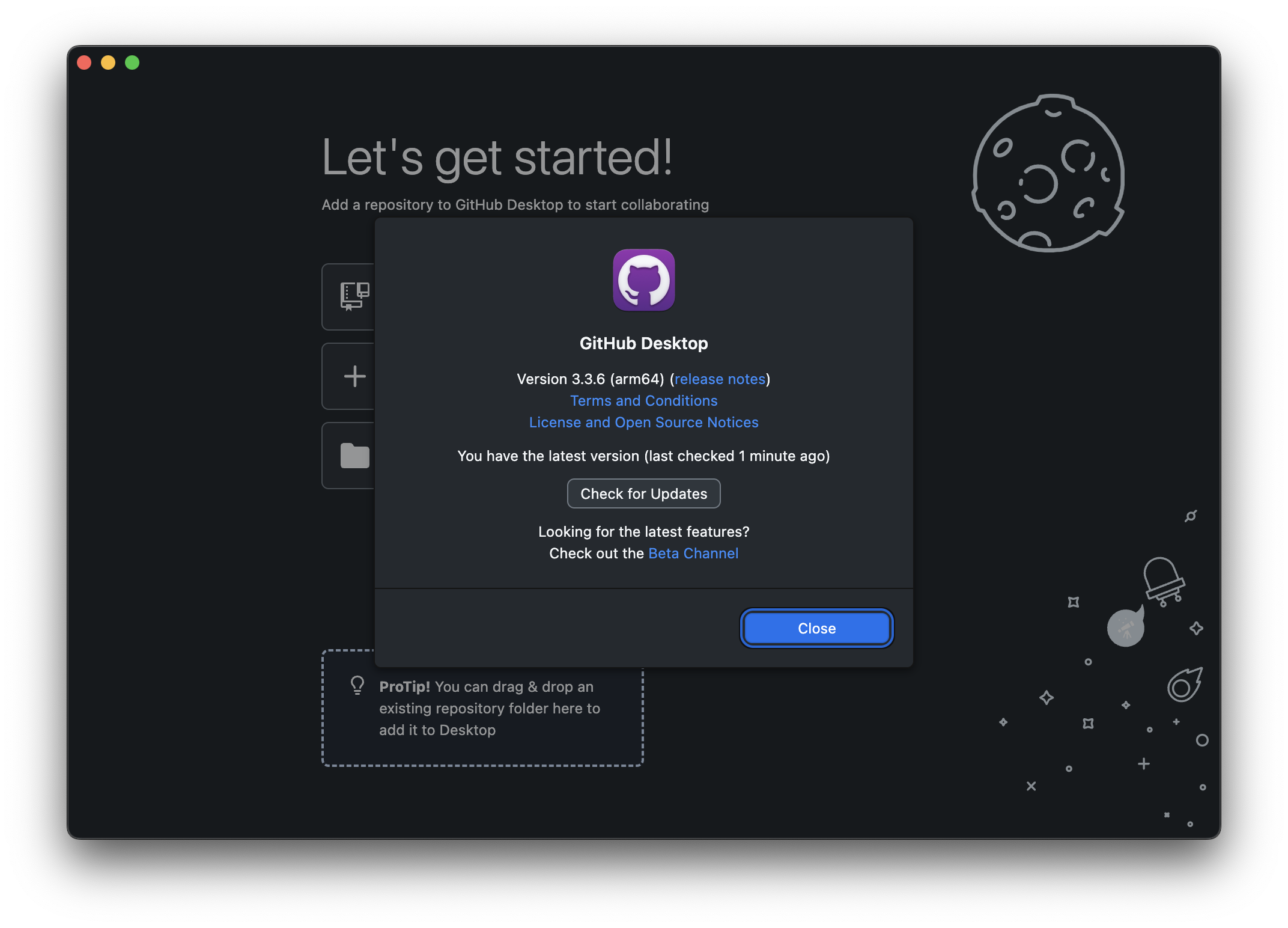
There are a ton of them. GitHub Desktop and GitKraken might be the most popular, and many of the most prominent IDEs and text editors have their own git client built right in. The git tab in VSCode was my go-to for a long time as well.
After taking a few of the tools listed in this handy list of GUI clients for a spin, I settled on GitUp. Unfortunately GitUp is only available on MacOS, but I’ll talk about another cross-platform option that I like at the end of the post.
GitUp: GUI Happiness
Three different tabs comprise the GitUp interface: The “Map View” tab, for visualizing the repository, the “Commit View” tab, for viewing the diff and committing changes, and the “Stashes View” tab, for manipulating, well, stashes.
Repository Visualization
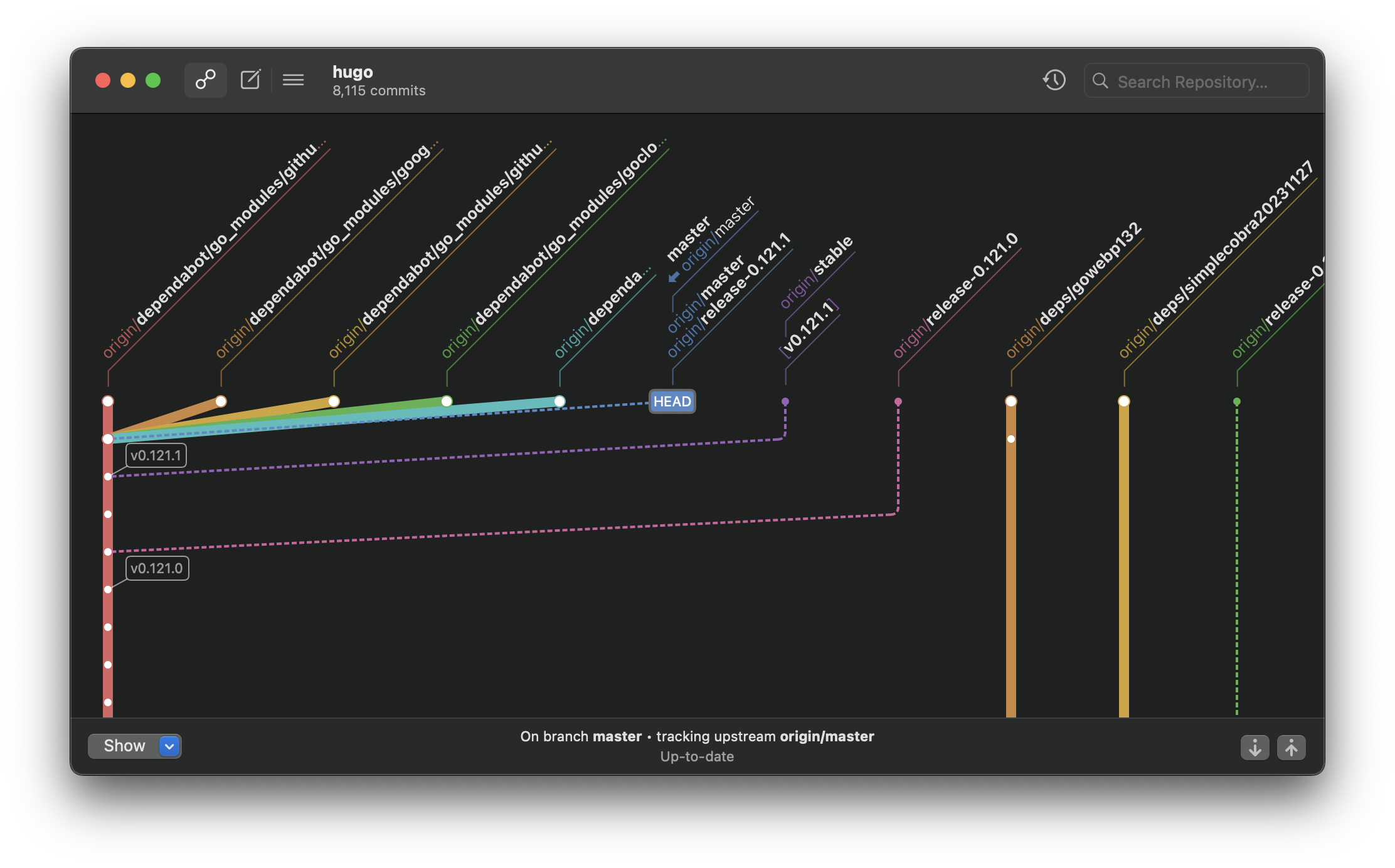
I think that the way you can visualize a git repository with a GUI tool is a pretty underrated aspect. For me, at least, it changed my mental model of a repo with its branches, commits, tags, and so on. When you’re using the command line, it’s almost a black box; you can’t “see” anything, and it’s just some set of arbitrary text commands. You might already have a good idea of how these things work, but seeing all the branches right in front of you, and how they relate to each other, is invaluable. Viewing and manipulating a repository in this way has definitely helped me get out of more than one classic git repo screw-up. Command+Z often works here too!
Diffing
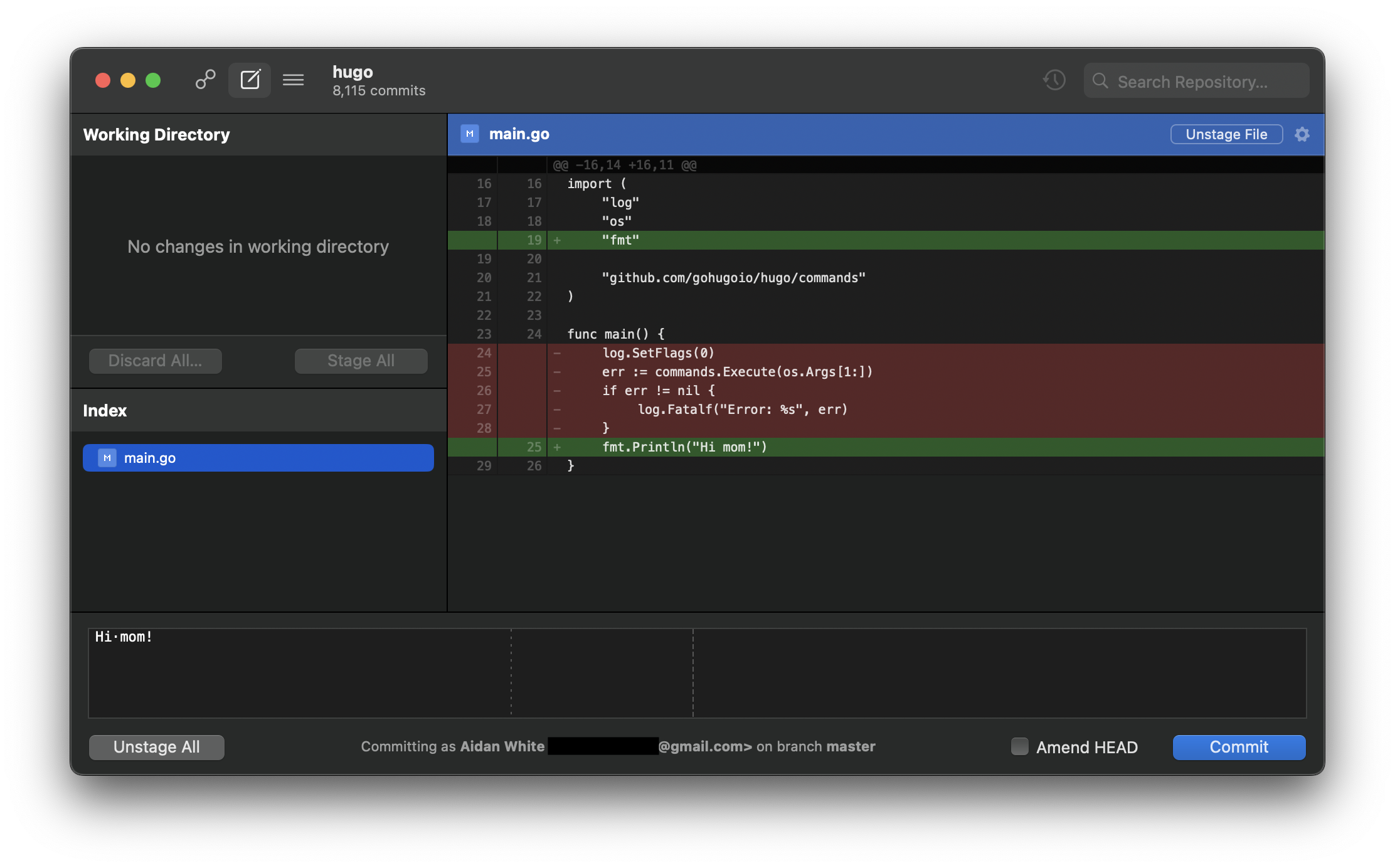
GitUp shows you the diff of your changed files in a way very similar to a pull request on GitHub.
I find this SO much easier to read through than the default output of a git diff command.
This, along with the ability to “point-and-click” to stage, unstage, and revert individual lines has made my “pre-commit lookover” a breeze.
I’m gonna skip a section on the stashes view - it’s a nice to have, but it’s not really game-changer, and it’s pretty straightforward. Check it out on your own!
Keyboard Shortcuts
Anyone who uses vim will be sure to tell you about all the time you waste moving between your keyboard and mouse. My mouse isn’t going anywhere anytime soon, but I think there is some truth to this. In a GUI with an excellent suite of keyboard shortcuts, I think you get the best of both worlds in both having everything on your screen to see and explore with your mouse, but also the speed and efficiency of a keyboard-based interface. Here’s a list of some of the highlights that I use the most.
The three tabs can be toggled between via the shortcuts cmd+1, cmd+2, and cmd+3, respectively.
Shortcuts in the map view include:
<space>- View changes on a commit<cmd> + P- Pull current branch<cmd> + <shift> + F- Fetch All branches<cmd> + <shift> + P- Push current branch<return>- SetHEAD; change branches, checkout a commit, etc.<option> + M- Merge into current branch<option> + R- Rebase current branch onto here
Shortcuts in the commit view include:
<return>- Stage or unstage a selected file or linea- Ammend HEAD (update the most recent commit)<option> + <return>- Commit
All of the keyboard shortcuts can be seen in their GitHub wiki: https://github.com/git-up/GitUp/wiki
A Late Addition: Lazygit
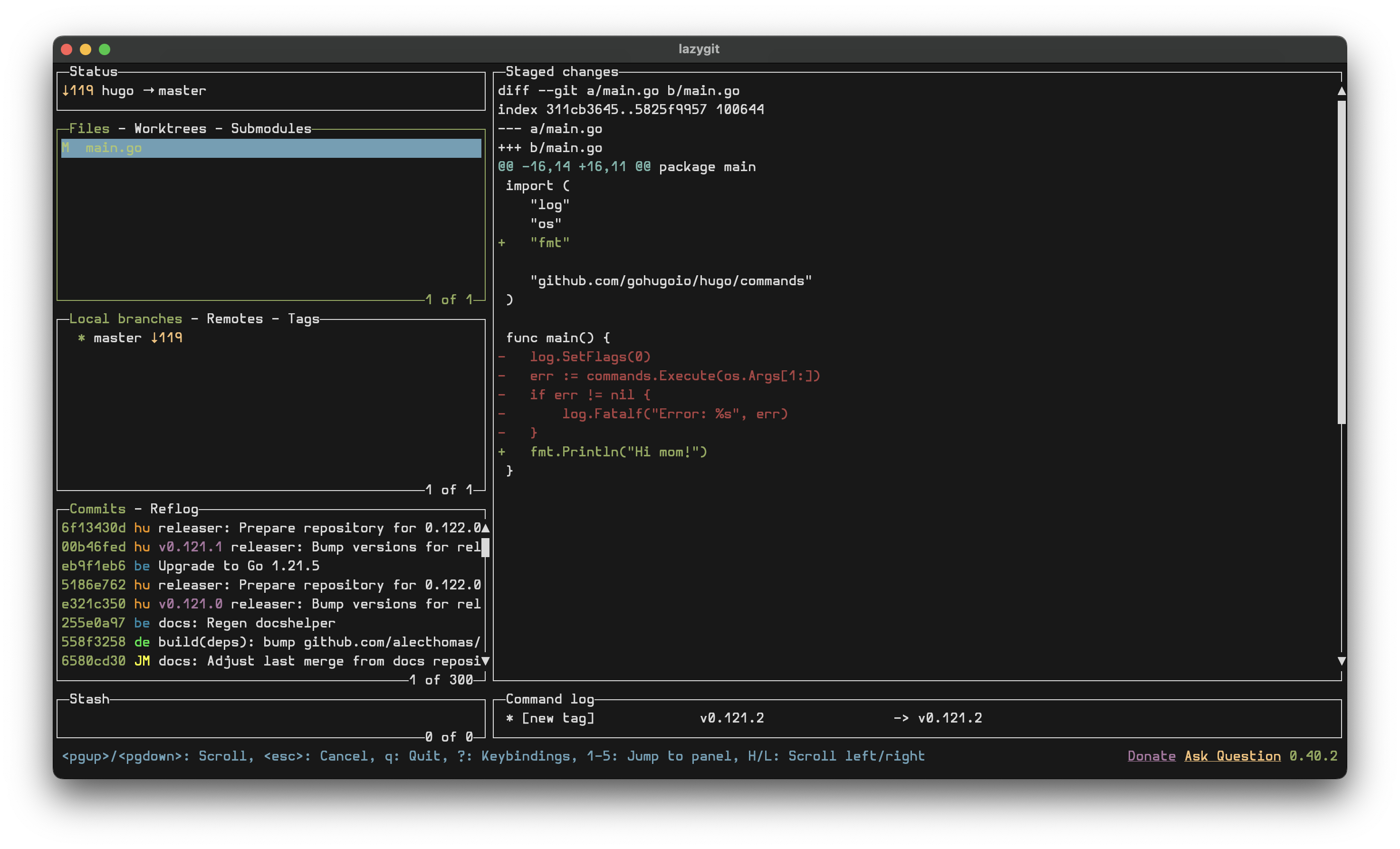
In the time since I first started writing this article, I’ve been playing around with using another git GUI tool, Lazygit. Lazygit is totally cross platform, unlike GitUp, and it runs in the terminal.
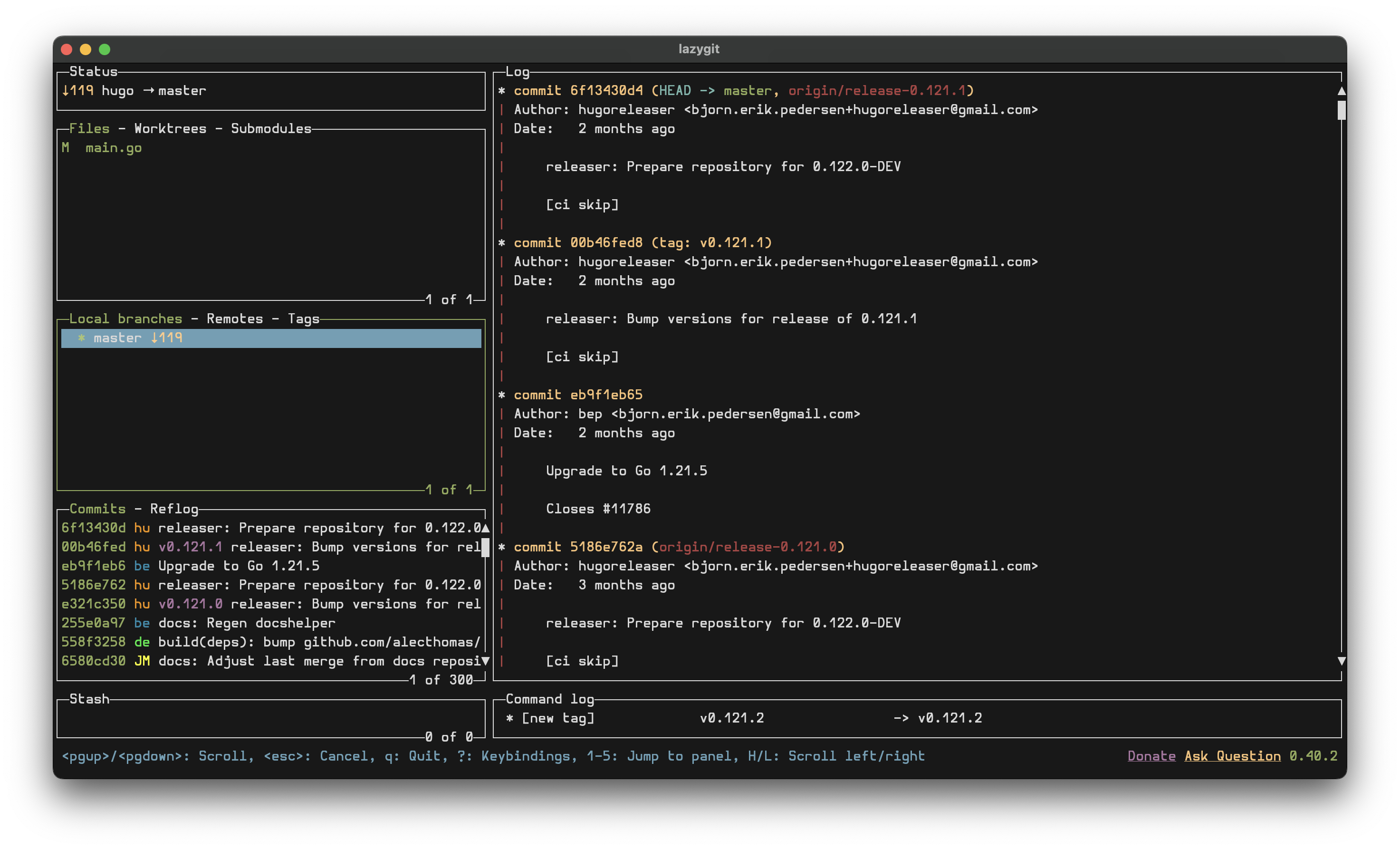
It’s somewhat similar to GitUp in that it splits its functionality into a few different panes for viewing branches, viewing diffs and committing files, and stashing, but the UI is definitely a little more daunting at first. I probably wouldn’t try to use Lazygit unless you are comfortable using the basic vim navigation keys, as that is the best way to move around the panes and files. While its branch view of the repository isn’t nearly as good as GitUp’s, in my opinion, it is nice to have it right there in your terminal (especially if you’re using vim), and I’ve found it to be less buggy than GitUp.
You can find more information on how to use Lazygit in their GitHub repository. Overall, I think it is an awesome tool for anyone who prefers to work in the terminal, though it may have a bit higher of a learning curve than some of the other options.
Thanks for reading, I hope this has been helpful for some of you out there!
Useful Links
- Git: https://git-scm.com/
- Lazygit: https://github.com/jesseduffield/lazygit
- GitUp Homepage: https://gitup.co/
- GitUp GitHub Repository: https://github.com/git-up/GitUp
- GitUp Wiki: https://github.com/git-up/GitUp/wiki
- Git GUI clients list https://git-scm.com/downloads/guis